GeneMapper ID-X Software is designed specifically to be an Expert Assistant, automating as much of the casework analysis workflow as possible, which enables you to make key interpretation decisions more quickly and confidently. Here we provide some tips on what to do with Size Quality flags.
Have you ever encountered a red or yellow Size Quality flag while analyzing data in GeneMapper ID-X? Have you wondered what those flags mean and how they should be handled? The purpose of the Size Quality flag (or SQ) is to alert you when the size standard pattern in a sample does not fit the size standard definition selected.
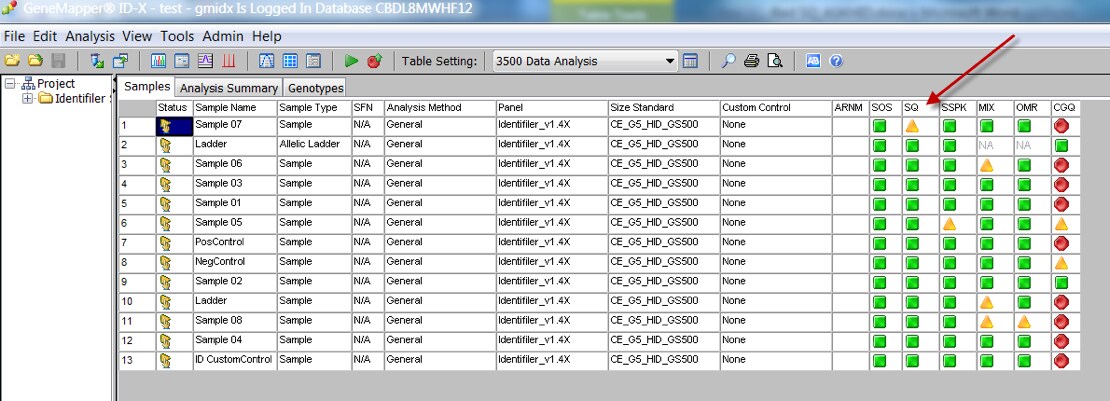
A size standard definition includes a list of expected fragment sizes associated with a dye color. Through pattern recognition and spacing rules, GMIDX is able to determine if the size standard fragments detected in each sample matches the size standard definition. This is how extraneous peaks such as spikes or pull-up are typically ignored by the software.
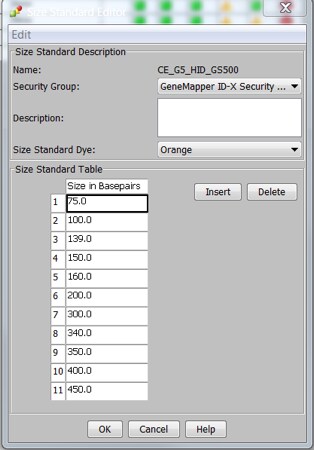
If all detected peaks align with the expected fragments and if spacing rules and peak resolution criteria are met, then the SQ flag is green and analysis proceeds. A passing size standard is essential for GMIDX to create a size calling curve and assign base pair sizes to your samples.
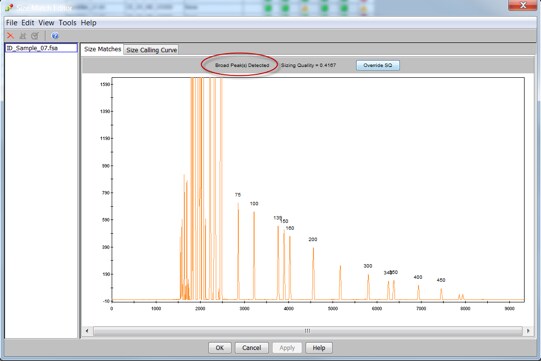
But what happens when the detected peaks do not match the size standard definition? The result is a yellow or red SQ flag. In this example, after reviewing the raw data, the SQ flag is firing appropriately because a poor quality injection occurred. There are issues with the peak resolution and morphology, the spacing is off and peaks are missing. The SQ flag is letting you know that this sample should be reinjected. The flag also fires when severe broad peaks are detected in cases of loss of resolution.
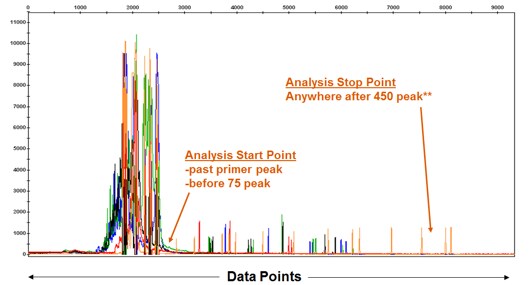
A red SQ flag can also occur because of inappropriate analysis settings. In this example, the injection is good – all of the peaks are present with good spacing and resolution. However, the SQ flag fired red. Why? The answer becomes apparent when you view the Size Match Editor. Here you can see that the first and last size standard peaks are missing.
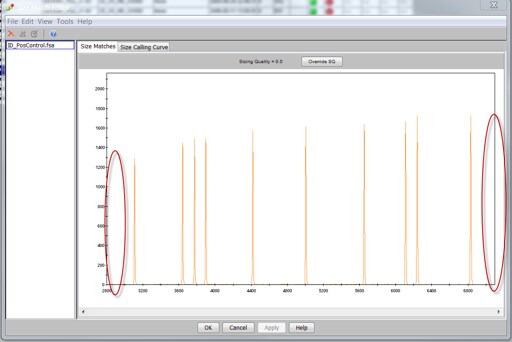
Upon reviewing the Analysis Range and comparing that range to the raw data, it is clear that the range is too narrow and is cutting off some of the defined size standard fragments. The solution for this scenario is to either analyze with Full Analysis Range or set the start and end points appropriately.
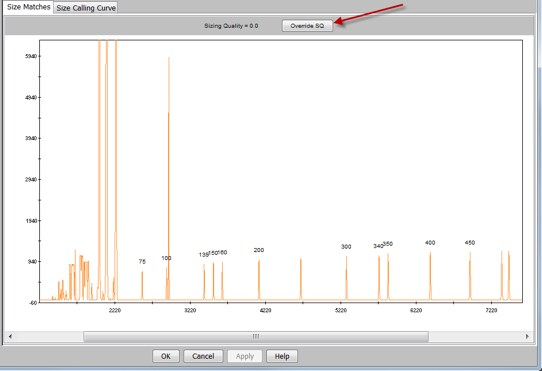
Now let’s see what options are available when the SQ flag fires because of extraneous peaks, such as spikes or pull-up. In this example, the software correctly locates the size standard fragments but the flag is thrown to alert you to extra peaks. Once you confirm the correct size standard fragments have been identified by the software, you can simply select the Override SQ button in the Size Match Editor. At that point, the Sizing Quality reverts to a value of 1 and the SQ flag turns green.
There are other quality flags that help ensure the right allele call is made. And there are many ways that we can help you navigate using GeneMapper IDX. Refer to the user manualfor more information, visit our FAQ page, or arrange for additional training if you have new analysts in the lab. Your FAS and Tech Support team is standing by. Just remember, we’re here to help.
For licensing and limited use restrictions visit thermofisher.com/HIDlicensing
For Research Forensic or Paternity Use Only. Not for use in diagnostic procedures.

Discover the future of DNA sample prep with me, Kayli Carrillo
Hey everyone! I’m Kayli Carrillo, a PhD student in the For...
Read More
Hernando County Is First in Florida to Use Rapid DNA for Booking
The RapidHIT ID DNA Booking System helps solve and prevent c...
Read More
Rediscovering Gregor Mendel Through Genetics
There are a few names that, even to non-scientists, are repr...
Read More
Unsolved Cases: Lawfully Owed DNA May Hold the Answers
Many states have laws requiring that people arrested, convic...
Read More
Leave a Reply