Search

Applied Biosystems™
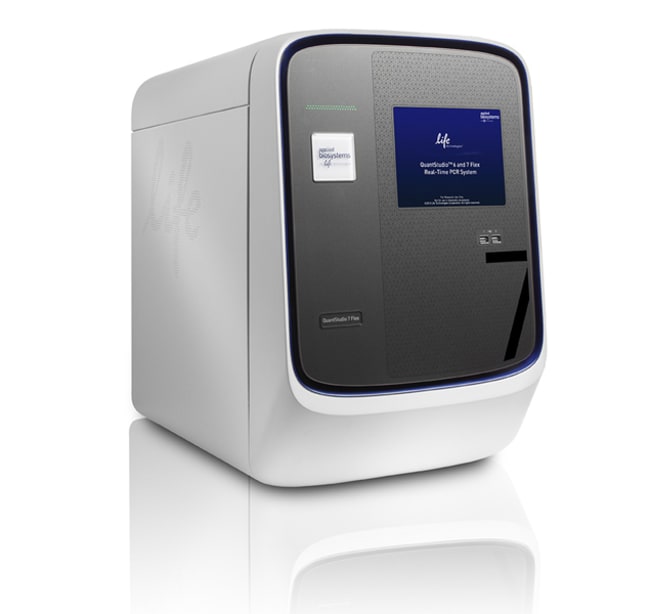
QuantStudio™ 7 Flex Real-Time PCR System, 384-well, desktop
The Applied Biosystems® QuantStudio™ 7 Flex Real-Time PCR System advances your research further by enabling a broad range of real-time詳細を見る
| 製品番号(カタログ番号) | 数量 |
|---|---|
| 4485701 | 1 system |
製品番号(カタログ番号) 4485701
価格(JPY)
-
数量:
1 system
The Applied Biosystems® QuantStudio™ 7 Flex Real-Time PCR System advances your research further by enabling a broad range of real-time PCR-based applications through its multiplexing capabilities and interchangeable block formats. With a simplified workflow, intuitive software, automation capabilities, and touch-screen interface, the QuantStudio™ 7 Flex system offers exceptional reproducibility with minimal well-to-well and instrument-to-instrument variation.
Features of the QuantStudio™ 7 Flex Real-Time PCR System include:
• Increased application versatility through the accomodation of 4 different block types
• Compatible with over 8 million TaqMan® assays for gene expression, genetic variation, gene regulation, or protein expression experiments
• The intelligent design of the QuantStudio™ platform combined with Applied Biosystems® instrument reliability and accuracy
• Easy-to-use software, responsive touch-screen, automation capabilities, and effortless block exchange without the need for any tools
Thermo Fisher Cloud
Thermo Fisher Cloud provides scientists with a secure place to store, analyze, and share data. Applied Biosystems qPCR Analysis Modules within the Thermo Fisher Cloud are web browser-based software tools that are flexible, fast and easy to use. These software tools are compatible with Mac or PC as well as most Applied Biosystems instrument file types.
>> Download a 90-day trial of the QuantStudio™ 7 software
The QuantStudio™ 7 Flex system accommodates the interchange of a 96-well, 96-well Fast, 384-well, or TaqMan® array card block. The system is delivered with one block type (a 384-well block in this case); other block types may be purchased separately. In addition, a Twister® Robot Automation Accessory is available for this system to support high throughput workflows. For a more value-priced system that does not support TaqMan® array cards or automation (but that can be upgraded to do so at a later date), please see our QuantStudio™ 6 Flex system. And for the ultimate in flexibility, consider the QuantStudio™ 12K Flex system, which also accommodates TaqMan® OpenArray® plates.
Accomplish More, Faster
Run hundreds of real-time PCR reactions effortlessly using TaqMan® Array 384-well microfluidic cards. And when integrated with the Twister® Robot Automation Accessory (available separately), the QuantStudio™ 7 Flex system maximizes your throughput capabilities.
High Application Versatility
Simple workflows, reliable assays and reagents, multiple formats, and intuitive software are available for a broad range of applications, including gene expression, genetic variation, gene regulation, High Resolution Melt (HRM), and Protein Thermal Shift™ experiments.
Results You Can Trust
Improved well-to-well and instrument-to-instrument data accuracy is achieved with the OptiFlex™ system, which features 6 decoupled excitation and emission filter channels with 21 filter combinations for maximum multiplexing and chemistry flexibility.
Sensitive Data Analysis
Detect changes in target quantity as small as 1.5-fold in single-plex reactions and obtain 10 logs of linear dynamic range.
Features of the QuantStudio™ 7 Flex Real-Time PCR System include:
• Increased application versatility through the accomodation of 4 different block types
• Compatible with over 8 million TaqMan® assays for gene expression, genetic variation, gene regulation, or protein expression experiments
• The intelligent design of the QuantStudio™ platform combined with Applied Biosystems® instrument reliability and accuracy
• Easy-to-use software, responsive touch-screen, automation capabilities, and effortless block exchange without the need for any tools
Thermo Fisher Cloud
Thermo Fisher Cloud provides scientists with a secure place to store, analyze, and share data. Applied Biosystems qPCR Analysis Modules within the Thermo Fisher Cloud are web browser-based software tools that are flexible, fast and easy to use. These software tools are compatible with Mac or PC as well as most Applied Biosystems instrument file types.
>> Download a 90-day trial of the QuantStudio™ 7 software
The QuantStudio™ 7 Flex system accommodates the interchange of a 96-well, 96-well Fast, 384-well, or TaqMan® array card block. The system is delivered with one block type (a 384-well block in this case); other block types may be purchased separately. In addition, a Twister® Robot Automation Accessory is available for this system to support high throughput workflows. For a more value-priced system that does not support TaqMan® array cards or automation (but that can be upgraded to do so at a later date), please see our QuantStudio™ 6 Flex system. And for the ultimate in flexibility, consider the QuantStudio™ 12K Flex system, which also accommodates TaqMan® OpenArray® plates.
Accomplish More, Faster
Run hundreds of real-time PCR reactions effortlessly using TaqMan® Array 384-well microfluidic cards. And when integrated with the Twister® Robot Automation Accessory (available separately), the QuantStudio™ 7 Flex system maximizes your throughput capabilities.
High Application Versatility
Simple workflows, reliable assays and reagents, multiple formats, and intuitive software are available for a broad range of applications, including gene expression, genetic variation, gene regulation, High Resolution Melt (HRM), and Protein Thermal Shift™ experiments.
Results You Can Trust
Improved well-to-well and instrument-to-instrument data accuracy is achieved with the OptiFlex™ system, which features 6 decoupled excitation and emission filter channels with 21 filter combinations for maximum multiplexing and chemistry flexibility.
Sensitive Data Analysis
Detect changes in target quantity as small as 1.5-fold in single-plex reactions and obtain 10 logs of linear dynamic range.
研究用途にのみご使用ください。診断目的には使用できません。
仕様
ディスプレイタイプTouchscreen
使用対象 (装置)QuantStudio™
フォーマット384-well Plate
製品ラインQuantStudio
数量1 system
ブロックフォーマットInterchangeable
Unit SizeEach
組成および保存条件
Desktop Computer