Where can I find the manual for the BindIt Software?
The User Manual for the BindIt Software can be downloaded from the BindIt Software product page online, under the Documents & Downloads section. It is also included within the BindIt Software installation file under "Documentation".
Find additional tips, troubleshooting help, and resources within our Automated Nucleic Acid Purification Support Center.
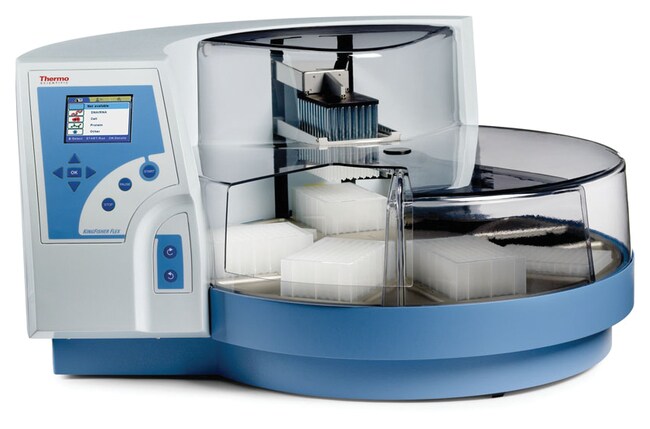
I cannot connect my KingFisher Flex instrument to the BindIt software. How do I troubleshoot this issue?
To determine the cause of the connection issue, we recommend checking the following:
1. Check software settings:
• Make sure the instrument selected is KingFisher Flex.
• Make sure the instrument serial number was input with the dash included and no spaces (ex, "711-xxxx").
• Make sure the communication tab was set to "USB" and not "COM".
2. Check the instrument and computer:
• The KingFisher Flex instrument screen (GUI) should be set to the "Factory Protocols" tab (blue tab) for best results.
• Make sure the port function on the Maintenance Tab (last tab) is checked for "USB".
• Try using different USB cables.
• Try a different USB port on the computer.
• Check the Windows version you are using.
• Reboot the KingFisher Flex instrument and the computer.
• Make sure the driver was installed properly. This may require the help of your local IT team.
If the connection issue persists, please contact our Technical Support team at techsupport@thermofisher.com.
Find additional tips, troubleshooting help, and resources within our Automated Nucleic Acid Purification Support Center.
What Uninterruptible Power Supply (UPS) do you recommend I use with the KingFisher Flex instrument?
You can use any brand of UPS as long as it is compatible with the following KingFisher Flex instrument electrical specifications:
• Mains power supply: 100–240 Vac, 50/60 Hz, nominal automatic voltage detection
• Power consumption: 175 VA max.; 55 VA standby
Find additional tips, troubleshooting help, and resources within our Automated Nucleic Acid Purification Support Center.
I am getting the following error message on the KingFisher Flex instrument: error message 12. What can I do to fix this error?
The “error message 12” error usually means there is something out of place on the KingFisher Flex instrument. We recommend the following to resolve the issue:
1. Check the heat block and make sure that it is not lifted up out of the base of the unit. If it is out of the base, check to see if there is anything underneath it that is preventing it from going down. If there is nothing under the heat block, it may have gotten stuck in the up position. This will require a service call.
2. Check that the tip shield is off to the right and out of the way from underneath the magnetic head. If it is stuck in the incorrect position, this may require a service call.
3. If the turntable was moved and it clicked out of place, the rectangular footprint cannot be centered below the head. Turn off the instrument and turn it back on. The instrument should re-align itself.
If the error continues to display, please contact techsupport@thermofisher.com for assistance.
Find additional tips, troubleshooting help, and resources within our Automated Nucleic Acid Purification Support Center.
How do I use BindIt software 4.0 to load a script from my computer to the KingFisher Flex or KingFisher Duo/Duo Prime instrument?
Please follow these steps to load a script from your computer to the KingFisher Flex or KingFisher Duo/Duo Prime instrument:
1. Use the USB cable to connect the PC to the instrument.
2. Turn on the instrument.
3. Open the BindIt software and click the Connect button.
4. Select "Find New Instrument." BindIt will automatically connect to the instrument and the instrument screen will say "Computer Control".
5. Click the "Transfer" Button.
6. Click the "Upload" button.
7. Browse to find the file and double-click it.
8. In the new window that opens:
a. KingFisher Flex: you will be prompted to enter a new name – this is not necessary if the name only contains letters, digits, dash or underscore.
• If the name contains spaces, apostrophes or any other character, you should enter a new name containing only letters, digits, dash (-) or underscore (_).
• Click the "Category" pulldown to select the instrument folder you want to load the script to.
• Click OK.
b. KingFisher Duo/Duo Prime: The KingFisher Duo and Duo Prime instruments accept all characters in the filename.
• Click the "Category" pulldown to select the instrument folder you want to load the script to.
• Click OK.
Find additional tips, troubleshooting help, and resources within our Automated Nucleic Acid Purification Support Center.